Email & Landing Page Builder
Since Mautic 3.3, Mautic has shipped with an updated, modern Builder for creating Emails and Landing Pages. In Mautic 4.0 it’s the default Builder.
Atenção
To use your existing templates with the new Builder, you need to add one line to your configuration file. Read on for further details.
About GrapesJS
Webmecanik initiated the new Email and landing page as an MVP. After developing and improving it using the open source GrapesJS framework, Aivie kindly made it available to the Mautic community.
GrapesJS is an open source, multi-purpose, Web Builder Framework which combines different tools and features with the goal to help build HTML templates without any knowledge of coding.
Available end-user features
Drag & drop built-in blocks
GrapesJS comes with a set of built-in blocks, in this way you’re able to build your templates faster. If the default set isn’t enough you can always add your own custom blocks.
Limitless styling
GrapesJS implements a simple and powerful Style Manager module which enables independent styling of any Component inside the canvas. It’s also possible to configure it to use any of the CSS properties.
Responsive design
GrapesJS gives you all the necessary tools you need to optimize your templates to look awesomely on any device. In this way you’re able to provide various viewing experiences. In case you require more device options, you can easily add them to the editor.
The structure always under control
You can nest Components as much as you can but when the structure begins to grow the Layer Manager comes very handy. It allows you to manage and rearrange your elements extremely fast, focusing always on the architecture of your structure.
The code is there when you need it
You don’t have to care about the code, but it’s always there, available for you. When it’s done, you can grab it and use it wherever you want. Developers could also implement their own storage interfaces to use inside the editor.
Asset Manager
The Asset Manager helps you organize and insert images into your Emails and Landing Pages.
Supported image formats
The Asset Manager supports the following image formats:
PNG
JPG/JPEG
GIF
WebP
SVG
PDF
Nota
Most Email clients don’t support SVG files. Use SVG images for Landing Pages only. For Emails, use PNG, JPG, or GIF formats instead.
Uploading images
To upload an image:
Double-click an image element in the Builder canvas.
Click “Drop files here or click to upload” in the Asset Manager dialog.
Choose one or more image files from your computer.
The images upload and appear in your media list.
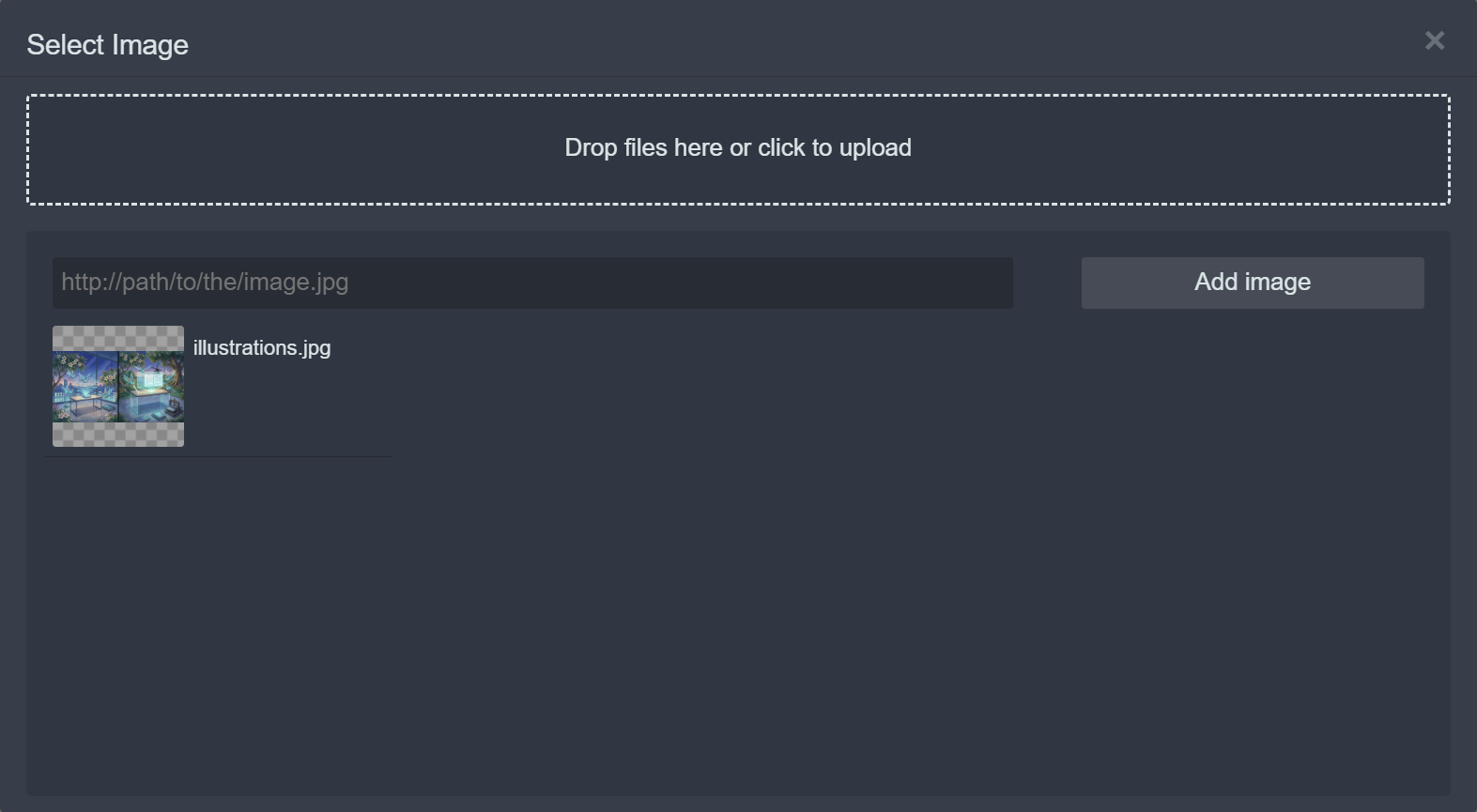
Mautic stores uploaded images in the media/images/ directory, so you can reuse them across your Emails and Landing Pages.
Editing text
GrapesJS uses inline text editing powered by CKEditor. Double click a text Component to open the inline editor and edit directly on the canvas.
The inline editor includes standard formatting options:
Bold, italic, underline and strikethrough
Font family, font color and font background color
Text alignment
Ordered and unordered lists
Headings
Links and anchors
Tables
Tokens for personalization
You can paste content from external sources like Microsoft Word or Google Docs. The editor keeps basic formatting and adapts it for Email and Landing Page layouts.
Dica
Click outside the text Component to finish editing and return to the canvas.
Restoring unsaved changes
As you edit, the Builder keeps a local backup of your content in your browser’s local storage. If you close the Builder without saving, for example because the tab crashes or you navigate away, Mautic can recover that work.
The next time you open the same Email or Landing Page in the Builder, Mautic compares the saved content with the local backup. If they differ, Mautic prompts you to restore the backup:
Select Restore the backup to replace the Builder content with the local backup.
Select Dismiss to discard the backup and keep the saved content.
Mautic only shows this prompt when the backup contains unsaved changes. Once you save and reopen the Builder, the backup matches what you saved, so no prompt appears.
About the builder
Enabling the builder
Since Mautic 3.3-RC1 the Builder is available to enable in the Plugins section of Mautic. Go to the Settings by clicking the cog wheel at the top right > Plugins > GrapesJS and click the GrapesJS icon. Change the slider to Yes.
Now you need to clear your Mautic cache located in var/cache and refresh the Landing Page before you can work with the new GrapesJS Builder. Some browsers may also require you to clear the browser cache.
By default, Mautic 4 activates the new Builder. Follow the previous steps to revert to the legacy Builder, remembering to clear the cache and reload the Landing Page.
Email builder overview

The functions of the Email Builder are as follows:
You can select different screen size to preview your Emails.
You have the ability to undo and redo your changes.
Editor functions from left to right: display grids, Full screen view, export MJML / HTML code, Edit code, display customization options, display blocks, close editor.
Layout sections. These objects function as the basic structure of your design. Create your Email structure from sections, and pull in the different blocks you want to use.
Content blocks. You can populate your newsletter with these content blocks. Each block has specific layout, settings and design.
Typography
Nota
Since Mautic 7.2, the GrapesJS Builder includes the Typography category.
The Typography category is only available when you edit MJML-based Emails in the GrapesJS Builder. It groups ready-made text blocks so you can add headings and body text without styling each element by hand. You can find it between the Sections and Blocks categories in the sidebar. It starts closed by default, so click it to expand the category.
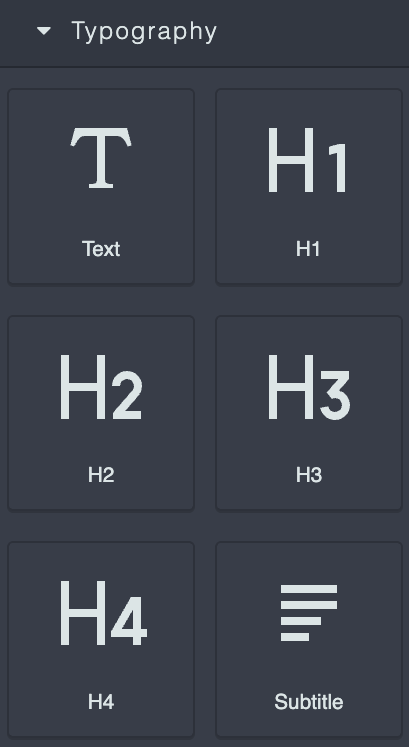
The Typography category contains these blocks:
Text - a plain text block for body copy
H1, H2, H3, H4 - heading levels
Subtitle - a smaller, italic block for supporting text
When you drag an H1, H2, H3, H4, or Subtitle block onto the canvas, Mautic opens the inline text editor and selects the placeholder text right away, so you can type over it immediately.
Each heading and Subtitle block comes with default sizing and styling, such as a bold 32px for H1 or an italic Subtitle. If your Theme defines its own typography tokens, the blocks use the Theme’s styles instead of these defaults. Since each Theme can define its own tokens, the same block can render with different sizes, weights, or colors depending on which Theme you apply.
Typography styling
The Style Manager’s Typography section restyles text Components that are already on the canvas. Select a text Component, then open the Style panel to reach these controls:
Font family - choose from the available fonts
Font size - set the text size in pixels
Font weight - adjust the weight from light to bold
Letter spacing - control the spacing between characters
Color - set the text color
Line height - adjust the vertical spacing between lines
Text align - align text left, center, right, or justify
Text decoration - apply none, underline, or strikethrough
Font style - switch between normal and italic
Mautic resolves typography across three levels, where each level overrides the one before it:
Theme defaults - the base styles defined by the Theme.
Component typography - the Style Manager settings listed in this section, which apply to the selected Component.
Inline editor - the formatting you apply to individual characters or words with the CKEditor inline toolbar when you double click a text Component.
Use the Component typography controls to fine-tune headings, paragraphs, and other text elements in legacy Themes that lack modern styling flexibility.
Custom fonts
You can extend the Typography > Fonts list to include custom fonts.

You define options as elements of the 'editor_fonts' array in the local configuration file - in most cases located in app/config/local.php. The font should have a unique name and a valid CSS style URL. See example below:
<?php
// Example local.php
'editor_fonts' => array(
    '0' => array(
        'name' => 'Smokum',
        'font' => 'Smokum, cursive',
        'url' => 'https://fonts.googleapis.com/css2?family=Smokum&display=swap'
    ),
    '1' => array(
        'name' => 'Sofia',
        'font' => 'Sofia, sans-serif',
        'url' => 'https://fonts.googleapis.com/css?family=Sofia'
    )
),
Templates
To use your existing templates with the new Builder, you need to add one line to your configuration file in the template folder:
"builder": ["grapesjsbuilder"],
If you wish to use the Theme in multiple builders, you can use this syntax:
"builder": ["legacy", "grapesjsbuilder"],
Aviso
This syntax changed between Mautic 3.3.* and Mautic 4 to enable support for multiple Builders - if you have been testing in the beta phase you need to update your configuration files to avoid a 500 error.
The blank Theme contains an example of a full configuration file:
{
  "name": "Blank",
  "author": "Mautic team",
  "authorUrl": "https://mautic.org",
  "builder": ["legacy", "grapesjsbuilder"],
  "features": ["page", "email", "form"]
}
From the 3.3 General Availability release there are be three Email templates that support MJML.
Themes
If you search through the list of available Themes, the new MJML Themes Brienz, Paprika and Confirm Me display only with the new Builder.
To learn more about creating Themes, see Creating Themes.
Linking an image
You can turn any image in a Landing Page or Email into a clickable link straight from the Builder, without editing the code. Select the image in the canvas, open the Settings panel on the right, and use the link fields below the Alt and Title fields.
The
hreffield sets the URL the image links to. When you set it, Mautic wraps the image in a link. Leave it empty and the image stays a plain image.The
targetfield controls where the link opens. Choose This window to open the link in the current tab, or select a new window to open it in a new tab.The
relfield sets the value of the link’srelattribute, such asnofollowornoopener. This field is optional.
Because Mautic only wraps the image in a link when you set the href field, an image without a URL renders normally. The link settings persist when you save and reopen the Landing Page or Email.
If you enter a bare domain such as example.com in the href field, Mautic automatically adds https:// to the front so the image links to a valid absolute URL such as https://example.com rather than a relative path. Mautic leaves the value unchanged in a few cases:
It already includes a scheme such as
https://ormailto:.It’s a relative path or anchor that starts with
//,/,#, or..It’s a single word with no domain extension such as
page.It’s a Mautic token that starts with
{.
Reporting bugs
Known bugs / issues
Please use the issue queue on the GitHub repository to find the latest updates and Report bugs with the Plugin. Be sure to search first in case someone has already reported the bug.
Switching back to the legacy Builder
In case you aren’t happy with the Plugin at the moment, you can easily switch back to the legacy Builder (original Mautic Builder). You can do so very quickly:
Go to Mautic Settings > Click the cogwheel on the right-hand top corner
Open the Plugins Directory > click «Plugins» inside the menu
Find the GrapesJs Plugin and click it > Click «No» and then «Save and Close»
Clear the cache and reload the Landing Page - you may also need to clear your browser cache.
After unloading GrapesJs Plugin, the legacy Builder becomes active again.
Thanks and credits
Thank you to everyone who contributed to this project. Special thanks to Adrian Schimpf from Aivie for all their hard work in leading the project, to Webmecanik for initializing this amazing new builder and to Joey from Friendly Automate for donating three Email Themes to the Community. Additional contributions: Alex Hammerschmied from hartmut.io, Dennis Ameling.
And of course a really big thank you to all the contributors who have helped to bring this project to this point.