Stages
Mautic Stages provide a means for Users to track and manage the progress of their Contacts through the various phases of the marketing lifecycle or funnel.
By categorizing Contacts into different Stages, you can better understand their engagement with the brand and tailor your marketing strategies accordingly.
Once you have created your Stages, you can easily move Contacts from one Stage to another based on their behavior or other criteria.
Creating Stages
Navigate to the Stages section in the left side menu, and then click +New.

Name - While most Companies have similar Stage structures, each Company uses them differently. Come up with the Stages you want to track different parts of your marketing funnel with.
Description - To help you and other Users easily identify what qualifies a Contact for that Stage, it’s recommended to add a description.
Weight - Determines the progression of your Stages. The higher the weight number, the further along in the funnel a Contact is. Contacts can’t move backwards to Stages with lower weights. Each Stage must have a unique weight. When creating or editing a Stage, a reference table shows existing Stages and their weights to help you choose an available value. If you enter a weight that’s already in use, Mautic displays a validation error.
Category - Assign a Category to help you organize your Stages. For more information, see Categories.
Activation options - The dashboard widget doesn’t display data for an inactive Stage. In addition, the Segment filters or Campaign conditions don’t display the Stage. To avoid using the Stage while building it, set a future activation date and time. If you want the Stage to become unavailable after a certain time, set the date and time for deactivating.
Moving Contacts between Stages
You can move Contacts between Stages with a Campaign action or with a Point Trigger. A Point Trigger’s Change contact’s stage event moves a Contact to the Stage you choose once they reach the trigger’s minimum Point total. For more information, see Contact triggers.
Depending on how you define your Contact lifecycle and Stages, there may be different triggers for a Contact to move between Stages. Examples include behaviors within a Campaign, or moving between Segments which have criteria set up for each Stage.
In any Campaign where you want to have Contacts move between new Stages:
Add a new Action.
Select Change Contact’s Stage as the action type.
Select the Stage you want to move the Contacts to. You can base this on a prior event, or on a Segment that Contacts are in based on filters matching your requirements for a Stage.

For more information on setting up Campaigns, see Triggering Campaign events
Nota
You can have multiple funnels with different Stages, but each Stage must have a unique weight across all funnels. A Contact can only ever be in one Stage at a time. It’s not possible to move a Contact to a Stage which has a lesser weight than their current Stage. For example, if they’re currently in Stage B which has a weight of 50, you can’t move them to Stage A which has a weight of 25.
Merging Stages
If two Stages serve the same purpose, you can merge one into the other. Merging moves every Contact from the merged Stage into the Stage you choose, transfers the related Stage history, and then permanently deletes the merged Stage.
Merging a Stage requires both edit and delete permissions for Stages. Without both, the Merge Stage doesn’t appear in the Options menu.
To merge Stages:
Navigate to the Stages section in the left side menu.
Find the Stage you want to merge into another, and then click the three-dots icon to open the Options menu.
Select Merge Stage.
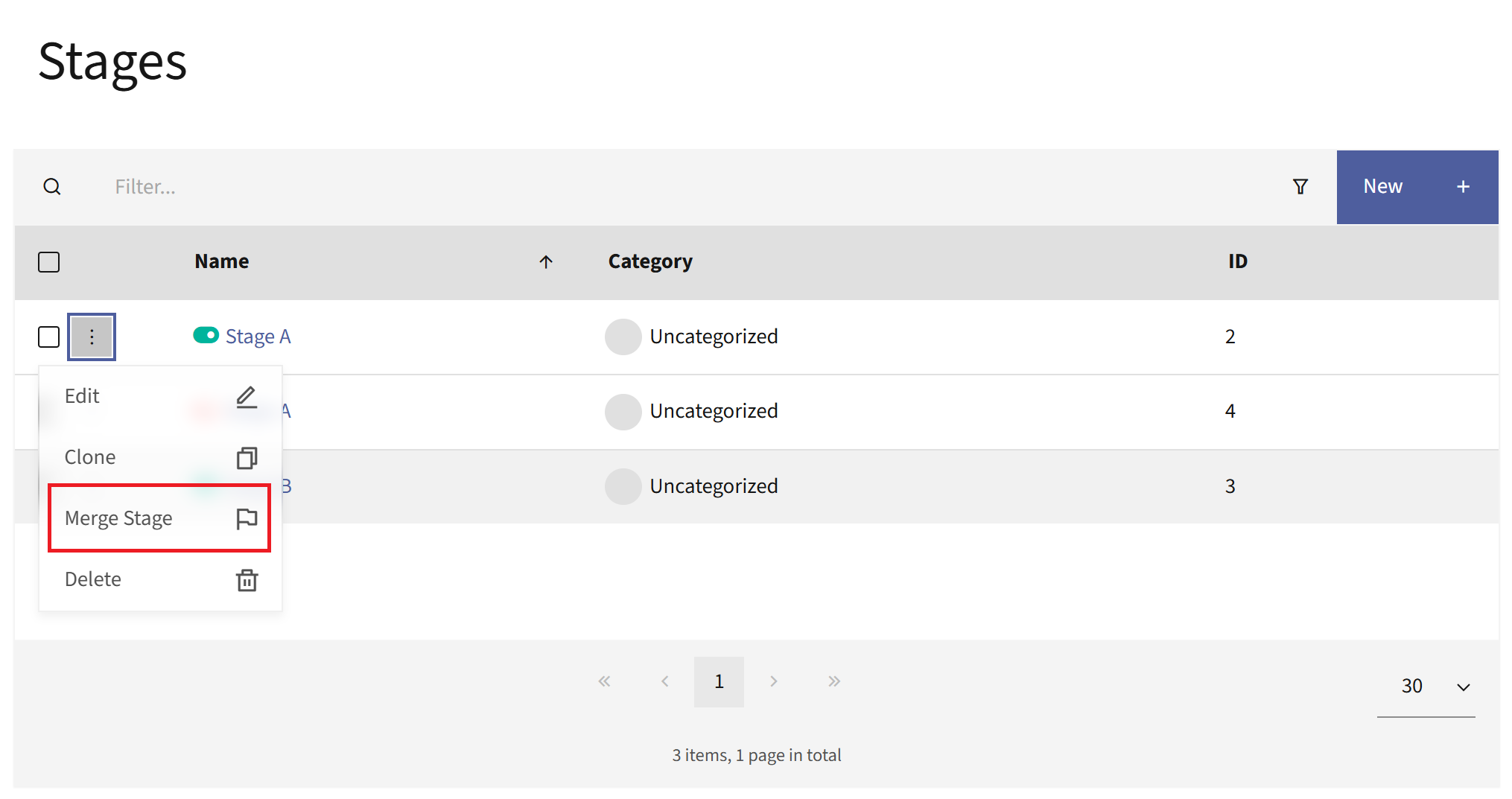
In the Merging current stage dialog, use the Choose a stage to merge into dropdown to select the target Stage.
Select Merge to complete the merge, or Cancel to close the dialog without making any changes.

Mautic confirms the merge with the message Stage “name” was successfully merged into “target”.
Aviso
Merging a Stage can’t be undone. Mautic reassigns every Contact from the merged Stage to the target Stage, moves the related Stage change history, and then permanently deletes the merged Stage.
Visualizing Stage movement
The Mautic dashboard features two widgets to help Users see how Contacts are moving between Stages.

The Stages in time widget shows how often Contacts change Stages. More change indicates more velocity through your funnel.
Lifecycle
The lifecycle widget enables marketers to see the number of Contacts within a specified Segment in each Stage. You may include multiple Segments on the widget. It’s possible to have more than one lifecycle widget to break down the information into separate graphs, but still display the data on the dashboard for multiple Segments.
