Searching Mautic
Search operators and filters
Mautic offers a variety of search operators and filters for drilling down into relevant resources. You can find the available search filters and operators by clicking on the button with a question mark next to the search input.
The search filters for that entity aren’t available if such a button is missing.
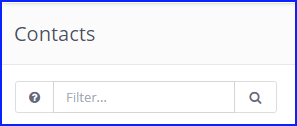
Mautic also has a “global search” feature. In the top left-hand corner, click the magnifying glass icon next to the Mautic logo/notifications icon. This opens a search input where you can search across multiple different entities.

Filter dropdown on list views
Most list views, including Contacts, Emails, Companies, and Segments, show a dropdown to the left of the filter input. Use it to scope a search to a single field without knowing the underlying query syntax.

“Standard” is the default option and keeps the usual free-text search behavior. To search within one field, pick it from the dropdown and type your term in the filter box. Mautic combines the two into the matching search filter. For example, selecting “First Name” on Contacts and typing John runs the firstname:John search.
The available options differ by entity. On Contacts, you can scope to fields such as “First Name”, “Last Name”, “Email”, “Company”, “Segment”, “Tag”, “Owner”, and “Country”, and any Custom Fields you’ve created appear together under a Custom Fields heading. On Emails, you can scope to fields such as “Subject”, “Name”, “Language”, and “Category”. Some options, such as is:mine or is:published, apply on their own the moment you select them, without a typed term.
Choosing a field only changes which field your next term searches. It doesn’t change how the search runs. The scoped search still appears in full in the URL, for example ?search=subject:foo, so you can bookmark or share a filtered view.
On the Contacts list, the dropdown also reminds you that you can type a filter directly. Start typing in the filter box to see query suggestions. For example, type zip to find the zipcode: filter. This helps when the field you want isn’t in the dropdown.

The fields you select in the dropdown map to the same search filters and operators described in the following sections, so you can always type them directly instead.
Search operators
Here are some search operators you can use:
+plus sign - Search for the exact string, for example, if you search for+admin, thenadministratorwon’t match.!exclamation mark - Not equals string" "double quotes - Search by phrase( )parentheses - Group expressions together.OR- By default the expressions joins asANDstatements. Use the OR operator to change that.%- Use the % as a wildcard to search for specific names or values in a phrase for example, to find all Companies with the word ‘Technologies’ then type %technologies%
Search operators filters
Here are some search filters you can use:
Contacts search filters
is:anonymous
is:unowned
is:mine
email:*
segment:{segment_alias}
name:*
company:*
owner:*
ip:*
ids:ID1,ID2 (comma separated IDs, no spaces)
common:{segment_alias} + {segment_alias} + ...
tag:*
stage:*
form:{form_alias} (Contacts who submitted the Form with this alias)
email_sent:EMAIL_ID
email_read:EMAIL_ID
email_queued:EMAIL_ID
email_pending:EMAIL_ID
Companies search filters
ids:ID1,ID2 (comma separated IDs, no spaces)
is:published
is:unpublished
is:mine
is:uncategorized
category:{category alias}
Segments search filters
ids:ID1,ID2 (comma separated IDs, no spaces)
is:global
name:*
category:category-alias
Assets search filters
ids:ID1,ID2 (comma separated IDs, no spaces)
is:mine
is:published
is:unpublished
name:*
is:uncategorized
category:{category alias}
Forms search filters
ids:ID1,ID2 (comma separated IDs, no spaces)
is:mine
is:published
is:unpublished
has:results
name:*
is:uncategorized
category:{category alias}
Landing Pages search filters
ids:ID1,ID2 (comma separated IDs, no spaces)
is:published
is:unpublished
is:mine
is:uncategorized
is:prefcenter
category:{category alias}
lang:{lang code}
Dynamic Content search filters
ids:ID1,ID2 (comma separated IDs, no spaces)
is:published
is:unpublished
is:mine
is:uncategorized
is:prefcenter
category:{category alias}
lang:{lang code}
Emails search filters
ids:ID1,ID2 (comma separated IDs, no spaces)
is:published
is:unpublished
is:mine
is:uncategorized
category:{category alias}
lang:{lang code}
Focus Items search filters
ids:ID1,ID2 (comma separated IDs, no spaces)
is:published
is:unpublished
is:mine
is:uncategorized
category:{category alias}
Manage actions search filters
ids:ID1,ID2 (comma separated IDs, no spaces)
is:published
is:unpublished
is:mine
is:uncategorized
category:{category alias}
Manage triggers search filters
ids:ID1,ID2 (comma separated IDs, no spaces)
is:published
is:unpublished
is:mine
is:uncategorized
category:{category alias}
Stages search filters
ids:ID1,ID2 (comma separated IDs, no spaces)
is:published
is:unpublished
is:mine
is:uncategorized
category:{category alias}
Reports search filters
ids:ID1,ID2 (comma separated IDs, no spaces)
is:published
is:unpublished
is:mine
Categories
ids:ID1,ID2 (comma separated IDs, no spaces) is:published is:unpublished
Users search filters
ids:ID1,ID2 (comma separated IDs, no spaces)
is:admin
is:active
is:inactive
email:*
name:*
position:*
role:*
username:*
Roles
ids:ID1,ID2 (comma separated IDs, no spaces)
is:admin
name:*
Webhooks search filters
ids:ID1,ID2 (comma separated IDs, no spaces)
is:published
is:unpublished
is:mine
is:uncategorized
is:prefcenter
category:{category alias}
lang:{lang code}